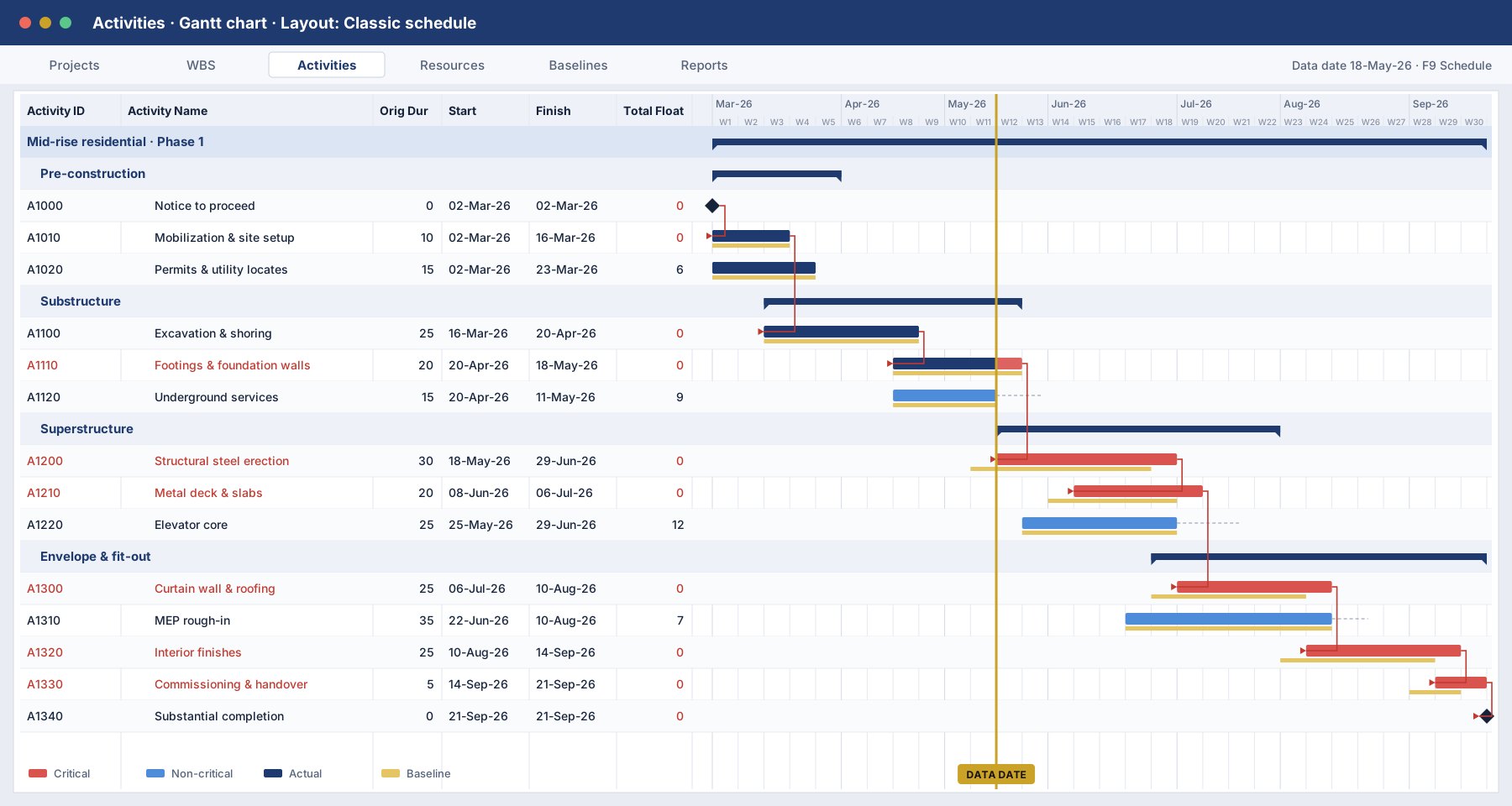
A schedule update that fails review costs you a month of credibility. Run these seven checks in Primavera P6 Professional before every submission. They take about 20 minutes and catch most of what an owner’s scheduler will flag.
1. Read the schedule log after every F9
When you schedule the project (Tools > Schedule, or F9), tick Log to file. The log lists activities without predecessors or successors, out-of-sequence progress, constraints and activities with actual dates after the data date. Fix every item, or be ready to explain it.
2. Confirm the data date
Every actual start and finish must be on or before the data date, and every remaining date after it. A single actual date in the future is the quickest way to lose a reviewer’s trust.
3. Choose Retained Logic or Progress Override on purpose
In the schedule options, Retained Logic keeps the remaining work of an out-of-sequence activity waiting for its predecessors. Progress Override ignores that logic. The choice can move your critical path, so pick one deliberately, state it in your narrative, and keep it consistent between updates.
4. Check the longest path, not just total float
Constraints and multiple calendars can make total float misleading. Set critical activities to Longest Path in the schedule options, or apply the Longest Path filter, and compare the result with your total float view. If they differ, find out why.
5. Hunt down hard constraints
Group or filter by Primary Constraint. Mandatory start and finish constraints override logic and can hide real delay. Replace them with logic or softer constraints wherever possible, and list any that must stay.
6. Compare with last month using Claim Digger
Tools > Claim Digger compares the current update with the previous one and reports added, deleted and changed activities, relationships and durations. Every logic change should be intentional and described in your narrative.
7. Keep baselines tidy
Save a copy of each submitted update as a baseline through Project > Maintain Baselines, then assign the correct project baseline under Project > Assign Baselines. A clean baseline history makes any future delay analysis far faster.
Learn this in class
These checks are covered hands-on in our Primavera P6 Basic and Advanced courses.
See P6 courses